Introduction
I've been working on some integrated environment setups lately.
Since my freshman year, I've always felt my tmux usage was a bit messy and incomplete.
It's been a while since I wrote a post, so I decided to review tmux and document it!
What is tmux?
If you've clicked on this, you probably already know a thing or two about tmux... XD
tmux — Terminal Multiplexer
It's quite simple, exactly as the name suggests.
A practical tool that allows you to perform multitasking operations in the terminal, such as splitting windows and switching between them.
Outline
- Install
- Basic Usage
- User prefix - .tmux.conf settings
Install
This shouldn't need much explanation; the installation method depends on your operating system, environment, and package manager.
apt-get install tmuxpkg install tmux
Basic Usage
Create tmux session
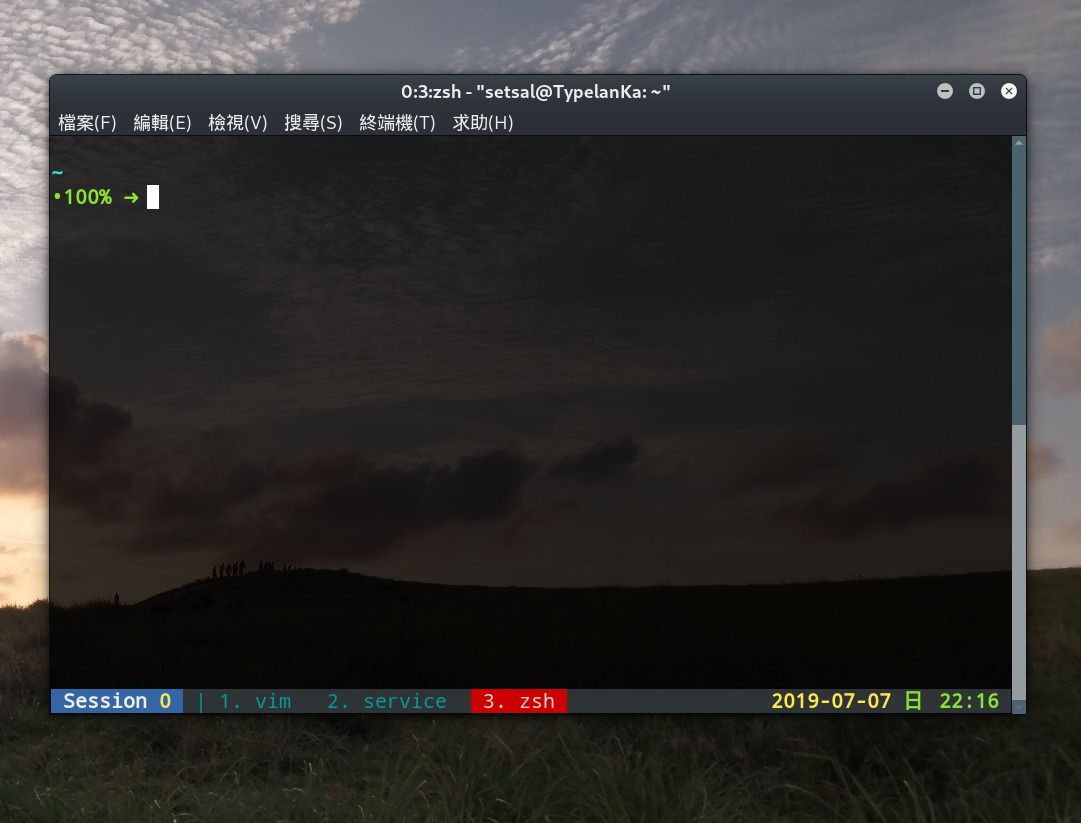
Just type tmux in your console. This will create a tmux session, usually session 0.
From there, you can start using various practical tmux features.
What is a Session? We will cover this later in the Multiple Session Control section.
Prefix key
tmux operations are performed using keyboard shortcuts combined with commands.
To perform any tmux-related action, you must first press a prefix key.
This tells tmux that you are about to issue a command for it.
The default prefix key is ctrl+b. If you find ctrl+b too far away, you can set your own preferred prefix key via .tmux.conf, which I will mention later.
Many people prefer to set the prefix to ctrl+a.Simple commands
tmux allows you to maintain multiple work windows or split screens using convenient and simple commands.
For example, you can split your screen into three windows as shown below, making it easy to program while observing execution status.

Let's list the basic, commonly used function keys to get started!
| Press after Ctrl+b | English Meaning | Function/Effect |
|---|---|---|
| c | create | Create a new window |
| x | close | Close the current window |
| w | choose | Interactive window selection |
| n | next | Jump to the next window |
| p | previous | Jump to the previous window |
| <number> | Jump to the window with the specified number | |
| , | rename | Rename the current window |
| d | detached | Detach from the tmux session and return to the original shell |
| : | command | Enter tmux command mode to execute specific commands |
A quick note on:; once used, it's like runningtmux <command>, allowing you to execute commands directly inside tmux.
Multiple Session Control
We mentioned earlier that tmux can create multiple windows and how to switch between them.
However, when you are working on different servers or need to switch between entire work environments or stages, creating multiple sessions can be very helpful.
For example: Session 0 for development, Session 1 for testing, and Session 2 for production.
Each session connects to its respective server and creates windows for multitasking.
Here is how to operate and switch between sessions:
| Command | Function/Effect | Note |
|---|---|---|
| tmux ls | List currently active sessions | |
| tmux attach -t <number> | Attach to an existing session | 1. attach can be abbreviated as att or a.2. To attach to the last session, just run tmux attach. |
| tmux new -s <name> | Create a session with a custom name | |
| tmux rename -t <oldname> <newname> | Rename a session | |
ctrl+b + s |
Interactive session selection |
tmux.conf
Alright, you've learned about 20-30% of what tmux can do. Don't underestimate that; it's enough to be quite productive!
What's next? Some extra tips to help you customize your tmux, such as:
- Setting up comfortable keybindings
- Adjusting the appearance and position of the status bar
- Displaying more information you need
- More lazy-friendly shortcuts...
You can achieve all of this by writing your own tmux configuration file.
Getting Started
To set your own configuration, create a .tmux.conf file in your home directory.
Here are a few practical functions I find useful. There is much more you can customize, so feel free to experiment!
# Change prefix from Ctrl+B to Ctrl+A
unbind C-b
set -g prefix ^A
bind b send-prefix

# Use bind and unbind to set keys that match your habits instead of the defaults
bind v split-window -h
bind s split-window -v

# Configure the status bar
set -g status-left "..."
set -g status-right "..."
For more examples, you can refer to my dotfile tmux repo on GitHub.
I haven't written much there yet, but I'll keep updating it! That's about it for now! XD